Tampilkan postingan dengan label my freebies. Tampilkan semua postingan

Minggu, 10 Juli 2016

Blended Learning Visually Explained for Teachers

July 10, 2016
Here is a short visual we created for teachers explaining the core notions behind the concept of Blended Learning. We have also included a collection of what we believe are some essential web tools for classrooms that adopt a blended learning model of instruction. You can share, print and use the visual the way you want as long as you credit us as the source.

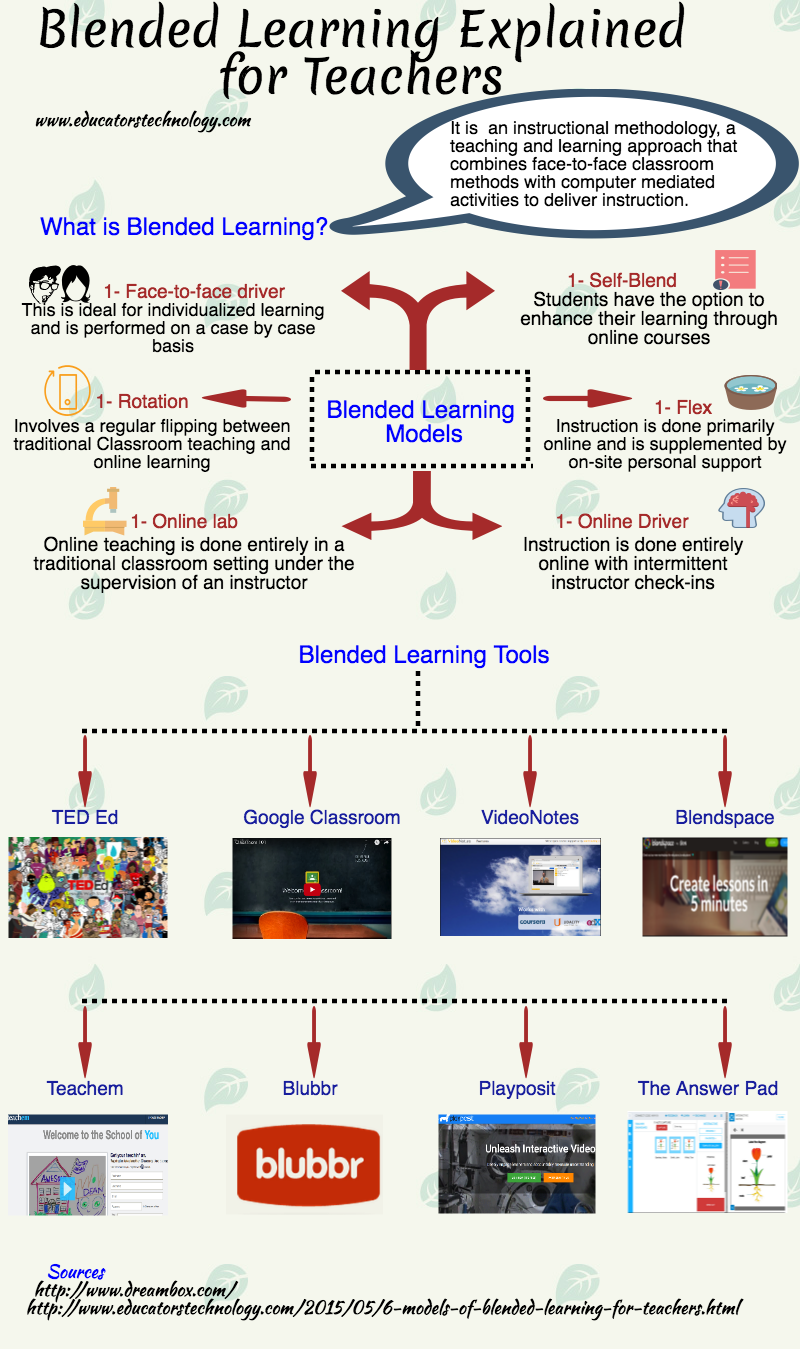
What is blended learning:
It is  an instructional methodology, a teaching and learning approach that combines face-to-face classroom methods with computer mediated activities to deliver instruction.

Blended learning models:
According to Dreambox, Blended learning has 6 main models:

1- Face-to-face driver
This is ideal for individualized learning and is performed on a case by case basis

2- Rotation
Involves a regular flipping between traditional Classroom teaching and online learning

3- Flex
Instruction is done primarily online and is supplemented by on-site personal support

4- Online lab
Online teaching is done entirely in a traditional classroom setting under the supervision of an instructor

5- Self-Blend
Students have the option to enhance their learning through online courses

6- Online Driver
Instruction is done entirely online with intermittent instructor check-ins

Blended Learning Explained for Teachers  Follow us on : Twitter, Facebook , Google plus, Pinterest .

Rabu, 06 Juli 2016

Teachers Guide to Creating Engaging Assignments on Google Classroom

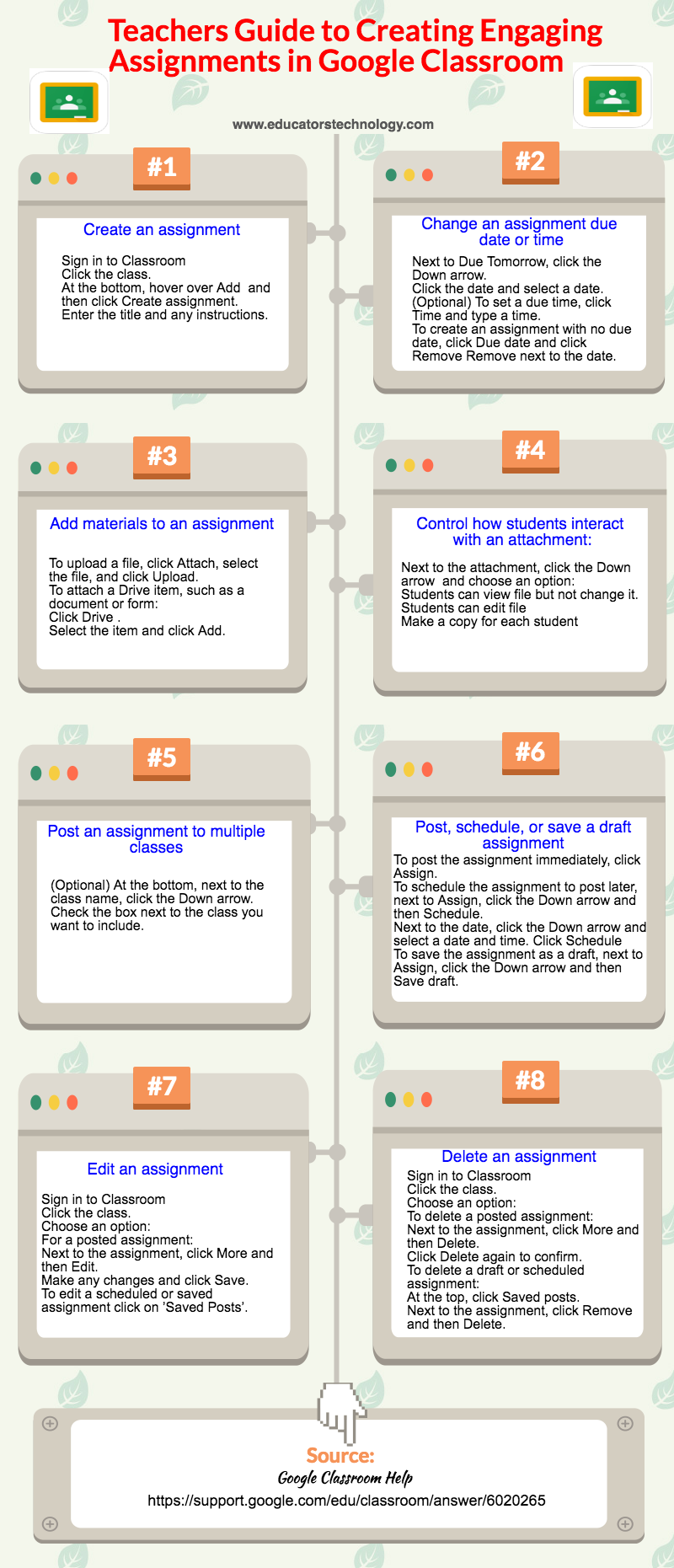
Below is an infographic we created based on insights from Google Classroom Help page. The visual walks you through the eight steps to create, edit and share assignments with students in Google Classroom. Instructions included work on Google Classroom for the web, for those of you using iPad or Android, check out this page . Some of the things you will learn from this visual include: learn how to create an assignment, change an assignment due date or time, add materials to an assignment, post an assignment to multiple classes, control how students interact with an assignment, edit and delete an assignment.

tips for creating engaging google classroom assignments 
1- Create an assignment
  • 'Sign in to Classroom
  • Click the class.
  • At the bottom, hover over Add  and then click Create assignment.
  • Enter the title and any instructions.'
2- Change an assignment due date or time
  • 'Next to Due Tomorrow, click the Down arrow .
  • Click the date and select a date.
  • (Optional) To set a due time, click Time and type a time.
  • To create an assignment with no due date, click Due date and click Remove Remove next to the date.'
3- Add materials to an assignment
  • 'To upload a file, click Attach Attach, select the file, and click Upload.
  • To attach a Drive item, such as a document or form:
  • Click Drive .
  • Select the item and click Add.'
4- Decide how students interact with an attachment:
  • 'Next to the attachment, click the Down arrow and choose an option:
  • Students can view file—Students can read the file, but not change it.
  • Students can edit file—Students can make changes to the file.
  • Make a copy for each student—Students receive an individual copy of the file that they can change.'
5- Post an assignment to multiple classes
  • Optional) At the bottom, next to the class name, click the Down arrow.
  • Check the box next to the class you want to include.
6- Post, schedule, or save a draft assignment
  • To post the assignment immediately, click Assign.
  • To schedule the assignment to post later, next to Assign, click the Down arrow and then Schedule.
  • Next to the date, click the Down arrow and select a date and time.
  • Click Schedule
  • To save the assignment as a draft, next to Assign, click the Down arrow and then Save draft.
7- Edit an assignment
  • Sign in to Classroom
  • Click the class.
  • Choose an option:
  • For a posted assignment:
  • Next to the assignment, click More More and then Edit.
  • Make any changes and click Save.
  • To edit a scheduled or saved assignment click on ’Saved Posts’.
8- Delete an assignment
  • Sign in to Classroom
  • Click the class.
  • Choose an option:
  • To delete a posted assignment:
  • Next to the assignment, click More More and then Delete.
  • Click Delete again to confirm.
  • To delete a draft or scheduled assignment:
  • At the top, click Saved posts.
  • Next to the assignment, click Remove and then Delete.

Senin, 04 Juli 2016

10 Interesting Ways to Integrate QR Codes in Your Teaching (Infographic)

July 3, 2016
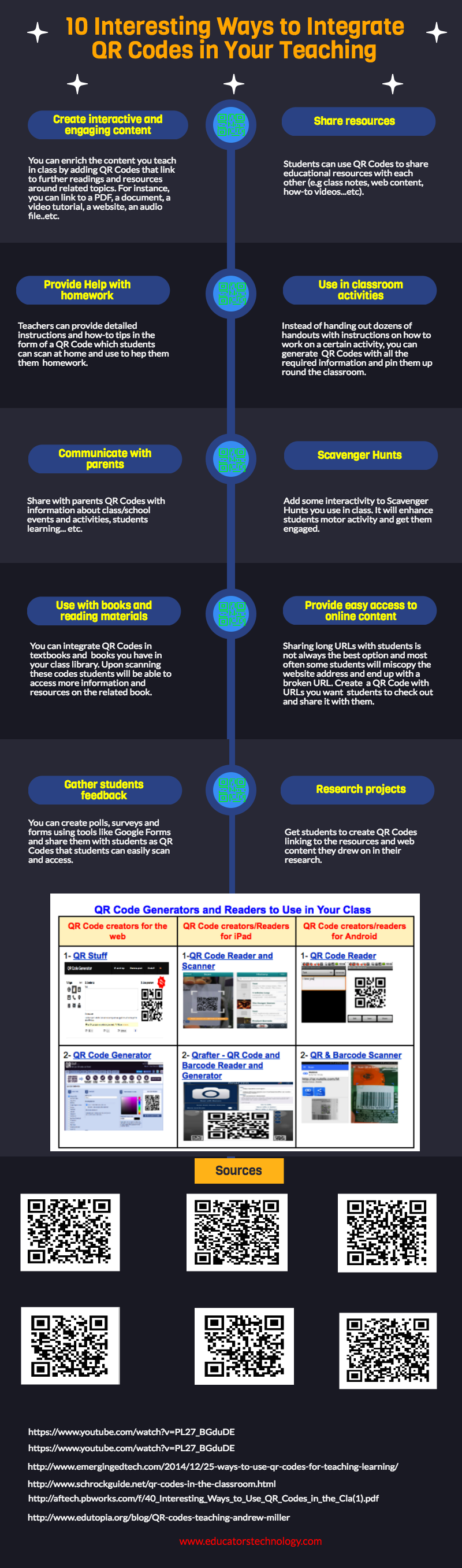
With the advance of mobile technologies, QR Code technologies open up a vast terrain for educational uses. There are several ways teachers can leverage the educational potential of QR Codes in their instruction. The visual below sums up 10 interesting examples of how you can use QR Codes with your students. We have also included some interesting resources and video tutorials to help better understand the whole concept of QR Codes in education. Check them out and share with your colleagues. Enjoy

10 Interesting Ways to Use QR Codes in Class

1- Create interactive and engaging content
You can enrich the content you teach in class by adding QR Codes that link to further readings and resources around related topics. For instance, you can link to a PDF, a document, a video tutorial, a website, an audio file..etc

2- Share resources
Students can use QR Codes to share educational resources with each other (e.g class notes, web content, how-to videos etc)

3- Help with homework
Teachers can provide detailed instructions and how-to tips in the form of a QR Code which students can scan at home and use to solve the homework

4- Use in classroom activities
Instead of handing out dozens of handouts with instructions on how to work on a certain activity, you can generate  QR Codes with all the required information and pin them up round the classroom.

5- Communicate with parents
Share with parents QR Codes with information about class/school events and activities, students learning...etc.

6- Scavenger Hunts
Add some interactivity to Scavenger Hunts you use in class. It will enhance students motor activity and get them engaged.

7- Use with books and reading materials
You can integrate QR Codes in textbooks and  books you have in your class library. Upon scanning these codes students will be able to access more information and resources on the related book.

8- Provide easy access to online content
Sharing long URLs with students is not always the best option and most often some students will miscopy the website address and end up with a broken URL. Create  QR Code with URLs you want  students to check out and share it with them

9- Gather students feedback
You can create polls, surveys and forms using tools like Google Forms and share them with students as Q R Codes that students can easily scan and access

10- Research project
Get students to create QR Codes linking to the resources and web content they drew on in their research.

Sources:

Jumat, 01 Juli 2016

A Good Infographic Featuring 10 Academic Search Engines for Educators

June 1, 2016
Below is a collection of some handy academic search engines teachers and educators can use to search for and find a wide variety of academic articles, journals, documents and theses. Some of these search engines are subject focused and others are generic. There is also another great academic platform called Academia which we have forgotten to include in our visual. Academia is basically a community-based site for academics where they share research papers and keep track of the latest releases in the world of academic research.

Here ate the links:

academic search engines

Minggu, 26 Juni 2016

A Handy Visual Featuring 6 Essential Skills for Doing Online Research

June 26, 2016
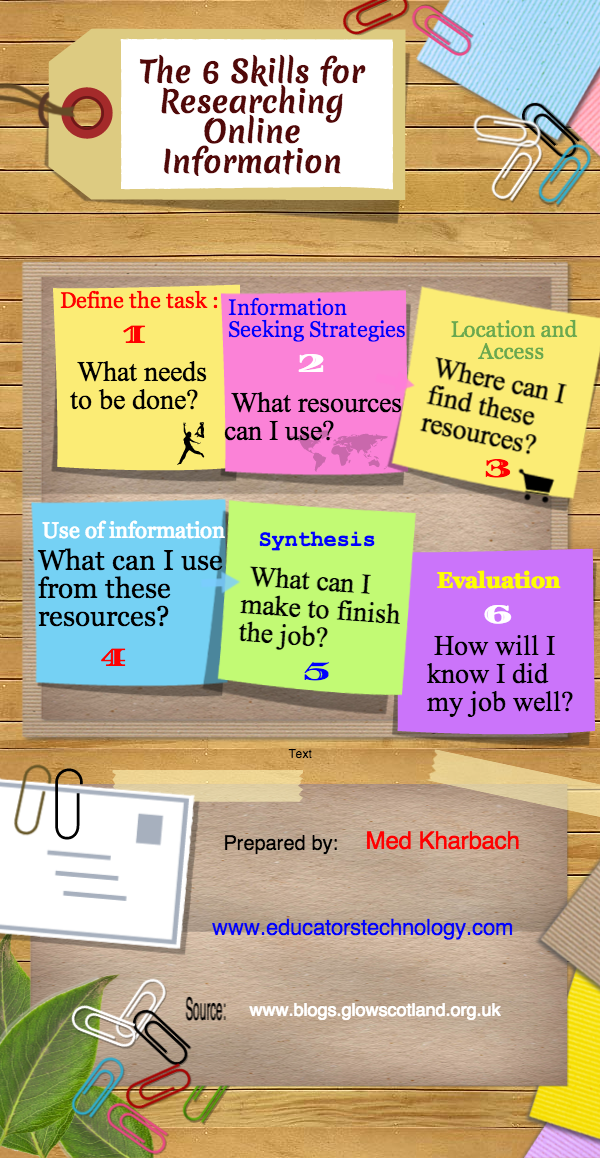
Digital search literacy is one of the key literacies for the 21st century students. Knowing how to conduct effective online searches and being able to easily locate, assess and evaluate online information is an essential asset for today’s learners. Digital search literacy is not only about knowing how to operate a search engine but goes beyond that to include critical thinking and assessment skills. In other words, digital search literacy is not solely about finding content but, more importantly, about evaluating the validity and authenticity of content. In today’s post, we are featuring a handy infographic we have shared here a few years ago. The visual, based a blog post from Glow Scotland, features 6 skills for doing online research (and traditional research as well) students should know about. Check them out below and share with your colleagues.

online search skills

Kamis, 23 Juni 2016

Make The Best of Google Drive with These 5 Add-ons

June 23, 2016
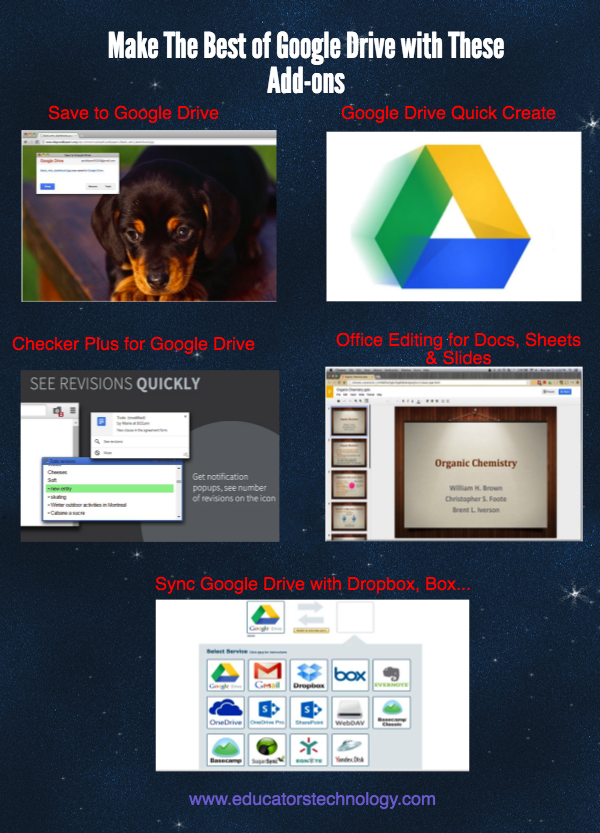
Below is a collection of five good Add-ons to help you make the best of your Google Drive. Some of the things you can do with these add-ons include: Easily save web content (images, videos, audio, documents, HTML5) to your Google Drive; quickly create a Google doc, form, spreadsheet, or presentation with a single click;  use a browser button to easily access, search, open, or delete documents in your Drive; view and edit Microsoft Word, Excel, and PowerPoint files -- without needing Office installed on your computer; and sync and back up anything from Dropbox, Box Evernote and several other cloud services right to your Google Drive.

google drive add-ons


1- Save to Google Drive

‘This extension allow you to save web content directly to Google Drive through a browser action or context menu. You can save documents, images, and HTML5 audio and video all by right clicking and selecting 'Save to Google Drive'. You can save the currently viewed page using the 'Save to Google Drive' browser action. The directory location and format of saved HTML pages can be controlled with the extension's options page (Choice of Entire image (default), Visible image, Raw HTML, MHTML, or Google Doc). You can automatically convert Microsoft Office files or comma separated files to Google Docs format.’

2- Google Drive Quick Create


‘A simple extension to make it quicker to create new Google documents, forms, spreadsheets, presentations and drawings.Supports multiple Google accounts through the options as well as shortcuts to custom templates.’

3- Checker Plus for Google Drive


Quickly browse your Google Drive files without opening a webpage and get notifications of modifications to your shared documents. Features provided include: browse, open, search or delete your files and documents right from a browser button (without waiting for Google Drive's page to open), get desktop notifications when any of your files/documents are modified or updated by a shared user and many more’.

4- Office Editing for Docs, Sheets & Slides


‘View and edit Microsoft Word, Excel, and PowerPoint files -- without needing Office installed on your computer. Once the extension is installed, Office files that you drag into Chrome, open in Gmail, Google Drive, and more, will be opened in Docs, Sheets, and Slides for viewing and editing.’

5- ExtensionSync Google Drive


‘With this browser extension you can sync, backup and integrate anything from your Dropbox, Salesforce, SharePoint, Google Gmail, Evernote, Box, OneDrive, Egnyte, or Basecamp account with Google Drive. Your sync setup can be done directly from your Google Drive™ interface with no complicated downloads.’

16 Great iPad Apps for Students with Special Needs (Infographic)

June 23, 2016
Here is another handy visual we created for those of you teaching students with special needs. This work is based on a chart we posted here a few months ago. The visual features some very good iPad apps for teachers and parents of kids with learning disabilities. We have arranged the apps into four main categories: apps for dyslexic learners, apps for autistic learners, apps for the visually impaired and apps for learners with writing difficulties. We invite you to check them, print and use the visual with your students in class and share with us your feedback. Enjoy

ipad apps for special needs students

Rabu, 22 Juni 2016

New Visual on Bloom's Digital Taxonomy for iPad

June 22, 2016
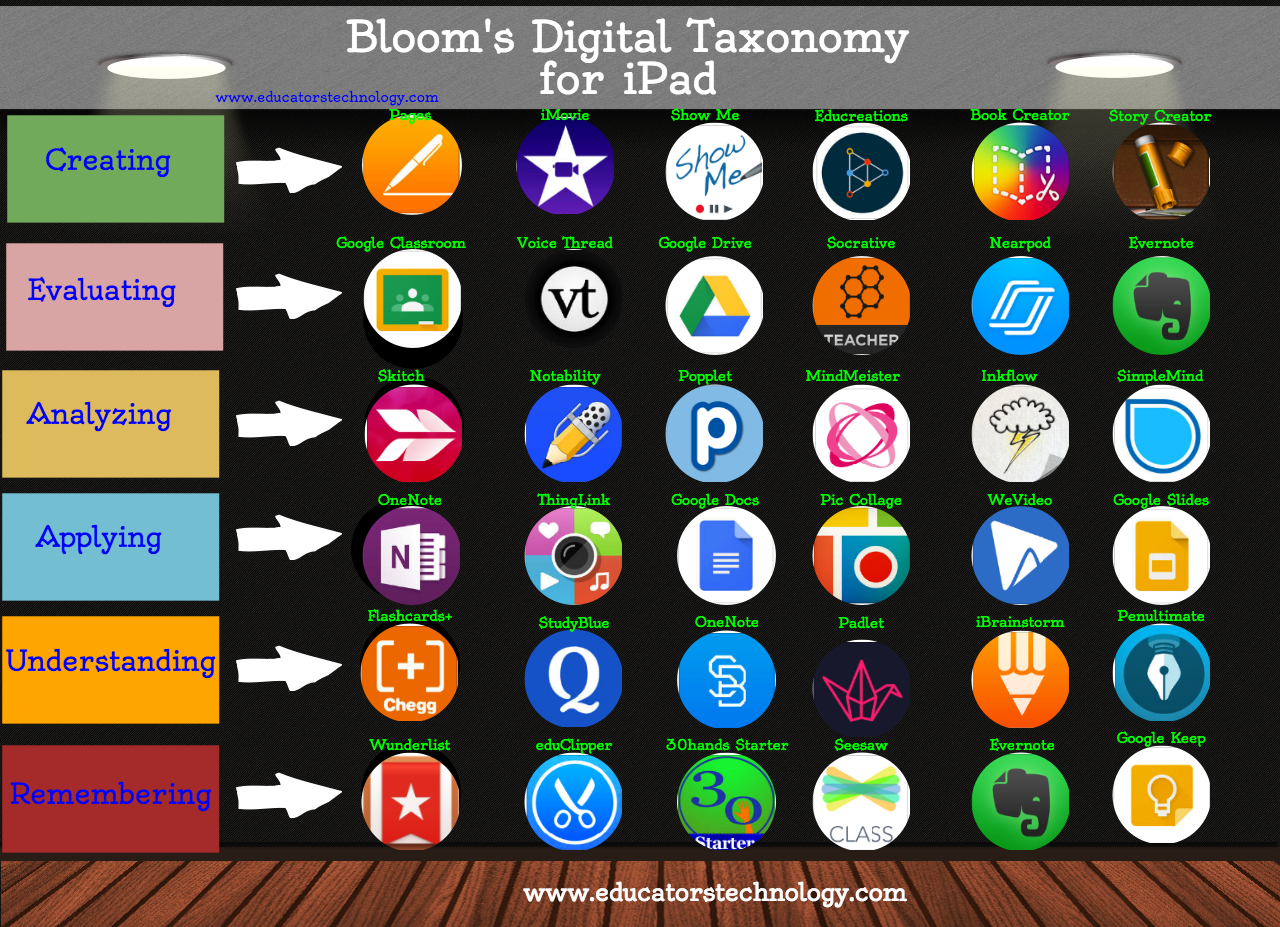
In today’s post we are sharing with you this handy visual featuring an updated collection of iPad educational apps that go with the six thinking levels of Bloom’s revised taxonomy. For each level we provided a sample of apps students can use to exercise and develop its thinking skill. For those of you looking for Bloom’s digital taxonomy for  Android and/or web check out this chart. As always, you can use, print or republish our visual on your site or blog as long as you credit us as the source. Enjoy

Click on the image to enlarge it

Bloom s digital taxonomy for ipad

Selasa, 21 Juni 2016

A Handy Infographic Featuring 10 Important New Google Forms Tips for Teachers

June 21, 2016
For those of you who haven’t tried the new Google Forms yet, the visual guide below will help you get started. It features 10 important features that will help you create engaging forms, polls, and surveys. As a teacher, you can use Forms for a variety of purposes including: planning an event, making surveys and polls, creating quizzes, collecting feedback and other information from students and many more. This infographic is entirely based on insights from Docs Editor Help. Enjoy

new google forms tips


 1- Create a survey, poll, or quiz
  • Go to docs.google.com/forms.
  • In the bottom right, click Plus Expand icon.
  • A new form will automatically open.
  • Type in a title for your question and choose one of the following questions types:Multiple choice, Checkbox, Short answer, Paragraph…
2- Create a form from a spreadsheet in Google Sheets
  • While working with a spreadsheet, click Insert  Form.
  • To edit your form click on Add questions here
  • A new form will automatically be created. A new tab will appear at the bottom of your spreadsheet labeled “Form responses,”  where all responses to your form will be added.
3- Add a section
  • Open a form.
  • Click New Section .
  • Title the new section.
4- Add an image or video
  • Open a form.
  • To add an image, click Add Image . To add a video, click add Video .
  • Choose your image or video and click Select.
5- Add a theme to a form
  • Open the form
  • Click the Color palette icon .
  • Choose a color for your form. Or, to add a theme, you can click the Image icon  and add an existing theme to your form from Google+.
6- Send respondents to a specific section based on an answer
  • Open the form.
  • Click the Question icon  and add a question you want to lead to a specific section of your form. The question needs to be either:
  • Multiple choice
  • Choose from a list
  • On the right side of the question, click the More icon .
  • Choose Go to section based on answer.
  • Next to your answers for this question, choose specific pages to send respondents to when they choose an answer.
7- Choose a form response destination
  • Open the form.
  • At the top, click the Responses tab
  • Click the More icon .
  • Select Choose a response destination.
  • Choose from the following destinations:
  • New spreadsheet: Creates a new spreadsheet in Google Sheets for responses
  • Enter in an existing spreadsheet: Choose from your existing spreadsheets in Google Sheets to store responses
  • Click Create.
8- Send your form to respondents
  • You can share a form through email, social media, or embed link:
  • Open the form.
  • In the top right, click Send.
  • Choose which sharing option you want to add
9- Share your form with collaborators
  • Open a form.
  • Click the File menu.
  • If you don't see a "File" menu, click the More icon  in the top right.
  • Choose Add collaborators.
  • In the text box under "Invite people," add the names or email addresses of your collaborators and choose the level of access you want them to have.
  • Click Done.
10- Delete responses from within a form
  • Open the file.
  • At the top of the form, click the Responses tab.
  • On the right, click the More icon .
  • Choose Delete all responses.

Senin, 20 Juni 2016

10 Great Web Tools for Creating Digital Quizzes

June 20, 2016
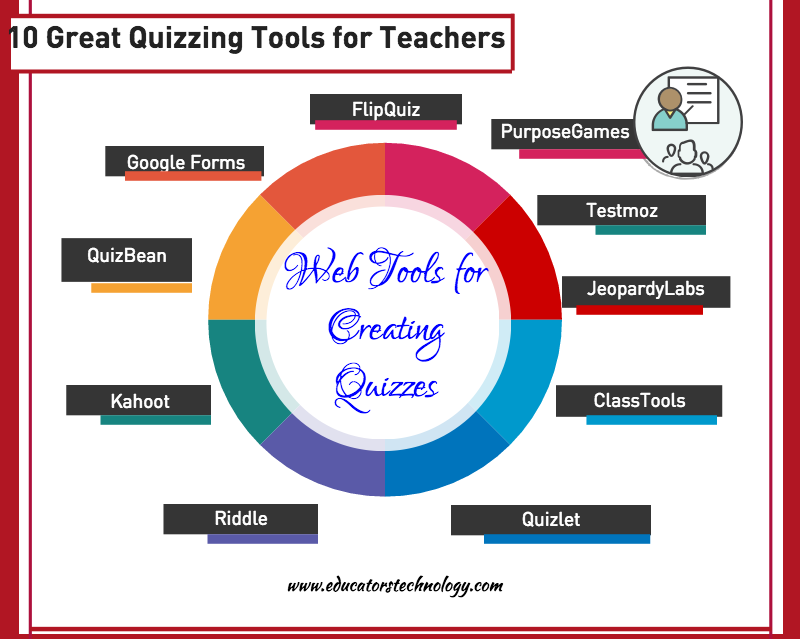
Over the last couple of years, we have reviewed a wide variety of educational web tools to use to create digitally based quizzes. Below is a collection of some of the most popular quizzing tools we have covered so far. Be it a flipped, blended, virtual or even traditional classroom, the tools  below will enable you to easily create interactive quizzes, questionnaires and polls to share with students in class. Have a look and share with us your feedback.

quizzing tools


1- FlipQuiz 

FlipQuiz is a web tool that allows teachers to easily create gameshow-style boards for test reviews in the classroom. All the boards you create can be saved for later use. You can also share your boards up on-screen and have students work on them collaboratively. Watch this demo to show you what a gameshow-style board looks like.

2- PurposeGames

PurposeGames is a website for engaging learners through creating and playing games.As a teacher you can use PurposeGames to create a variety of game-based quizzes. Some of the options you have include:Image Quizzes; Multiple Choice Quiz; Image shape quiz.

3- Riddle

Riddle is an excellent web tool for teachers. It allows them to create their own PlayBuzz and Buzzfeed-style quizzes, lists, polls, and more, often in under a minute. Riddle’s goal is to provide best-in-class tools that making creating interactive content simple, so you can concentrate on the content instead of worrying about the tools.

4- QuizBean 

This is a cool web tool to use to create quizzes and assess your students. The basic free version alows you to create only 6 quizzes but you can go unlimited for $10 per month. Some of the features QuizBean offers to its users include:
  • Add 3 questions or 30. Make your quiz as short or as long as you want.
  • Add unlimited choices to your questions — that means multiple choice and true/false.drag 'n drop pictures for any question.
  • Reinforce what students should know by adding explanations to each question.
  • Allow students to see a report of the questions they got right and wrong.
5- Kahoot 

Kahoot is a student response system that teachers can use to create and deliver quizzes and surveys to students. Kahoot provides a learning environment that is ideal for engaging students for it incorporates the precepts of both game-based learning and inquiry-based learning. Kahoot allows teachers to create quizzes and surreys that include a wide variety of multimedia elements such as videos, pictures and text. Each quiz you create can be accessed by students across different devices . Also teachers have the possibility to create time-controlled quizzes. You can set a specific period of time for the answer of each question. In this way students are rewarded not only for the correct answer but also for their timeliness.
6- Testmoz

Testmoz is an excellent web tool that allows you to create auto graded tests and quizzes. This application is designed by Matt Johnson, an undergraduate student at Washington State University, Vancouver.The strength of this application lies in its simplicity and user-friendliness. Testmoz supports 4 types of questions: True/false, multiple choice, multiple response, and fill in the blank. Each test you create has a unique URL which you can use to edit your test later on or to share with others.

7- JeopardyLabs

JeopardyLabs is an excellent web tool that allows you to easily create jeopardy games without using PowerPoint templates. The process is very simple and does not require any fees, registration or software download. To create a Jeopardy template, click on “ Start Building” button in the home page. Type in a password for your template so you will be able to edit it later on. Next, use the editor to customize your template the way you want. See the video below to learn more about how to build a jeopardy template from scratch.
8- ClassTools

ClassTools provides you with a variety of educational web tools to ‘ create free games, quizzes, activities and diagrams’. No sign-up is required and you can host your quizzes on your own blog or website.
9- Quizlet 


Quizlet is a great website for students and educators. It allows them to have a free access to over 10 million of flashcards and study games that cover almost every possible subject. There are for instance topics such as Math, Geography, History, Languages, Art, Standardized tests, Professional careers,and more.Quizlet can also help teachers create their own flashcards and share them with their students.

10- Google Forms
Google Forms is also another excellent tool to use to create different types of quizzes, questionnaires and polls.  Anything you create on Forms will be automatically saved to your Google Drive so you can access, view, and edit it anytime you want. Check out these tutorials to learn more about how to use Google Forms


Minggu, 19 Juni 2016

An Interesting Infographic Featuring 12 Good Chrome Extensions for Research Students

June 19, 2016
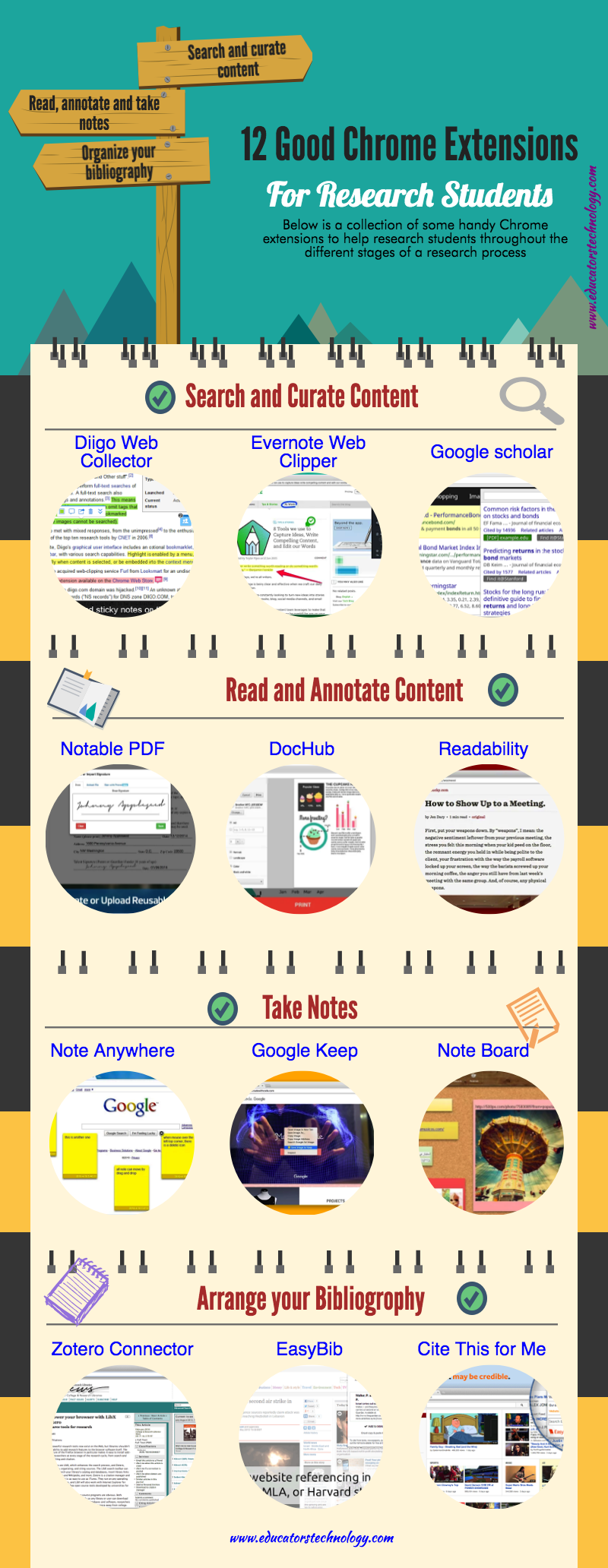
The visual below is based on a post we shared here a few days ago. It features a number of important Chrome extensions to help students research during the different stages in a research process. We arranged these extensions under four main headings: Search and curation (Diigo Web Collector, Google scholar, Evernote Web Clipper), Reading and annotation  (Readability, DocHub, Notable PDF), Taking notes ( Google Keep and Note Anywhere), Bibliography and citations (EasyBib, Cite This for Me, Zotero Connector).

Chrome extensions for researchers

Jumat, 17 Juni 2016

A Good Infographic Featuring 30 Web Tools for Teacher Librarians

June 17, 2016
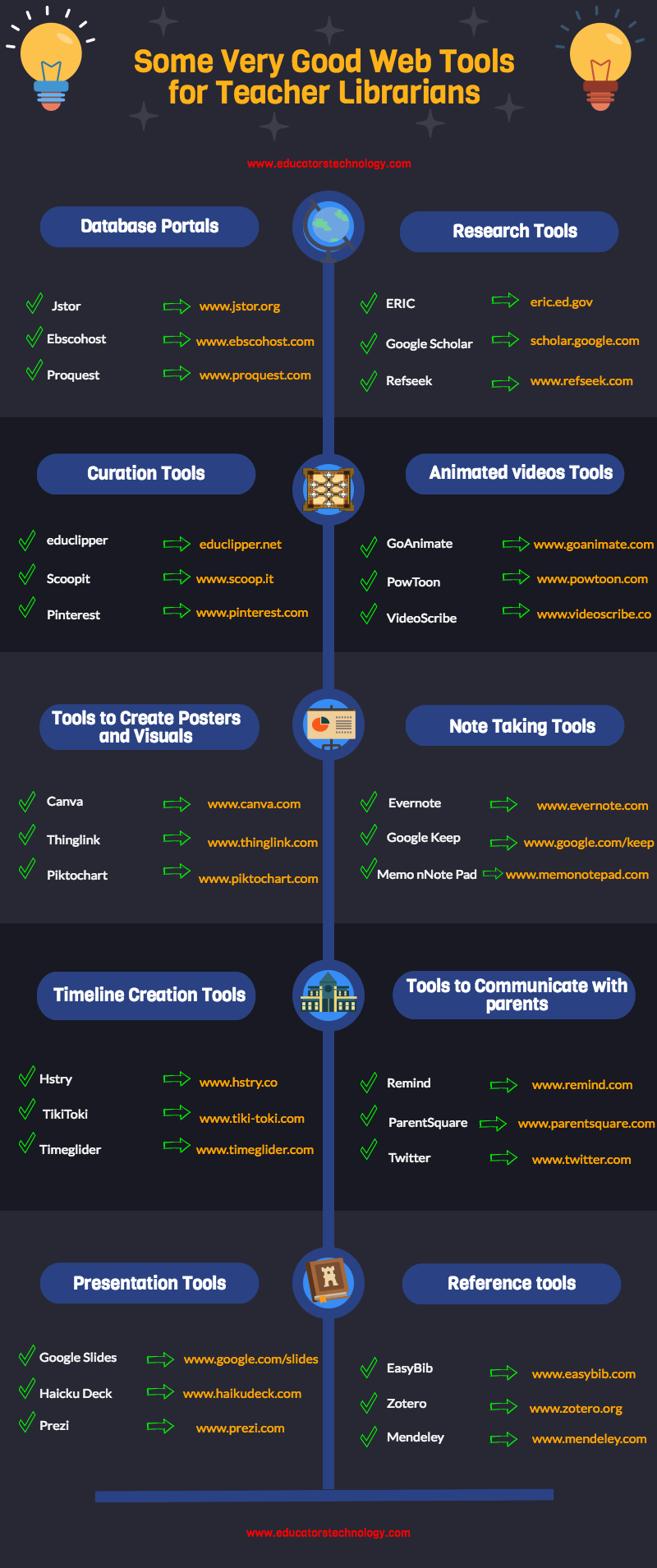
Librarians make a huge difference in our students lives. They are entrusted with a wide variety of educational tasks. Some of these tasks according to Queen University Library include: help students with information-related activities, assist students in developing information literacy skills that allows them to navigate and search the web effectively, collaborate with teachers in creating challenging project-based activities, run different literacy clubs, build library collections and many more. After we have reviewed some good books for librarians, we are sharing with you today this handy visual featuring a collection of practical tools to help teacher librarians in their daily work. Enjoy

teacher librarian tools


1- Database portals
  • Jstor: www.jstor.org
  • Ebscohost: www.ebscohost.com
  • Proquest: www.proquest.com
2- Research Tools
  • ERIC: eric.ed.gov
  • Scholar: scholar.google.com
  • Refseek: www.refseek.com
3- Curation tools
  • educlipper: educlipper.net
  • Scoopit: www.scoop.it
  • Pinterest: www.pinterest.com
4- Make professional animated videos
  • GoAnimate: www.goanimate.com
  • PowToon: www.powtoon.com
  • VideoScribe:www.videoscribe.co
5- Make beautiful visuals and posters
  • Canva: www.canva.com
  • Thinglink: www.thinglink.com
  • Piktochart: www.piktochart.com
6- Take notes
  • Evernote
  • Google Keep
  • memonotepad: memonotepad.com
7- Timeline creation
  • Hstry: www.hstry.co
  • TikiToki: www.tiki-toki.com
  • Timeglider: timeglider.com
8- Communicate with parents
  • Remind: www.remind.com
  • ParentSquare: www.parentsquare.com
  • Twitter: www.twitter.com
9- Make presentations
  • Google Slides: www.google.com/slides
  • Haicku Deck: www.haikudeck.com
  • Prezi: www.prezi.com
10- Reference tools
  • EasyBib: www.easybib.com
  • Zotero: www.zotero.org
  • Mendeley: www.mendeley.com

Kamis, 16 Juni 2016

A Handy Infographic Featuring 10 Things Every Teacher Should be Able to Do on Google Classroom

June 16, 2016
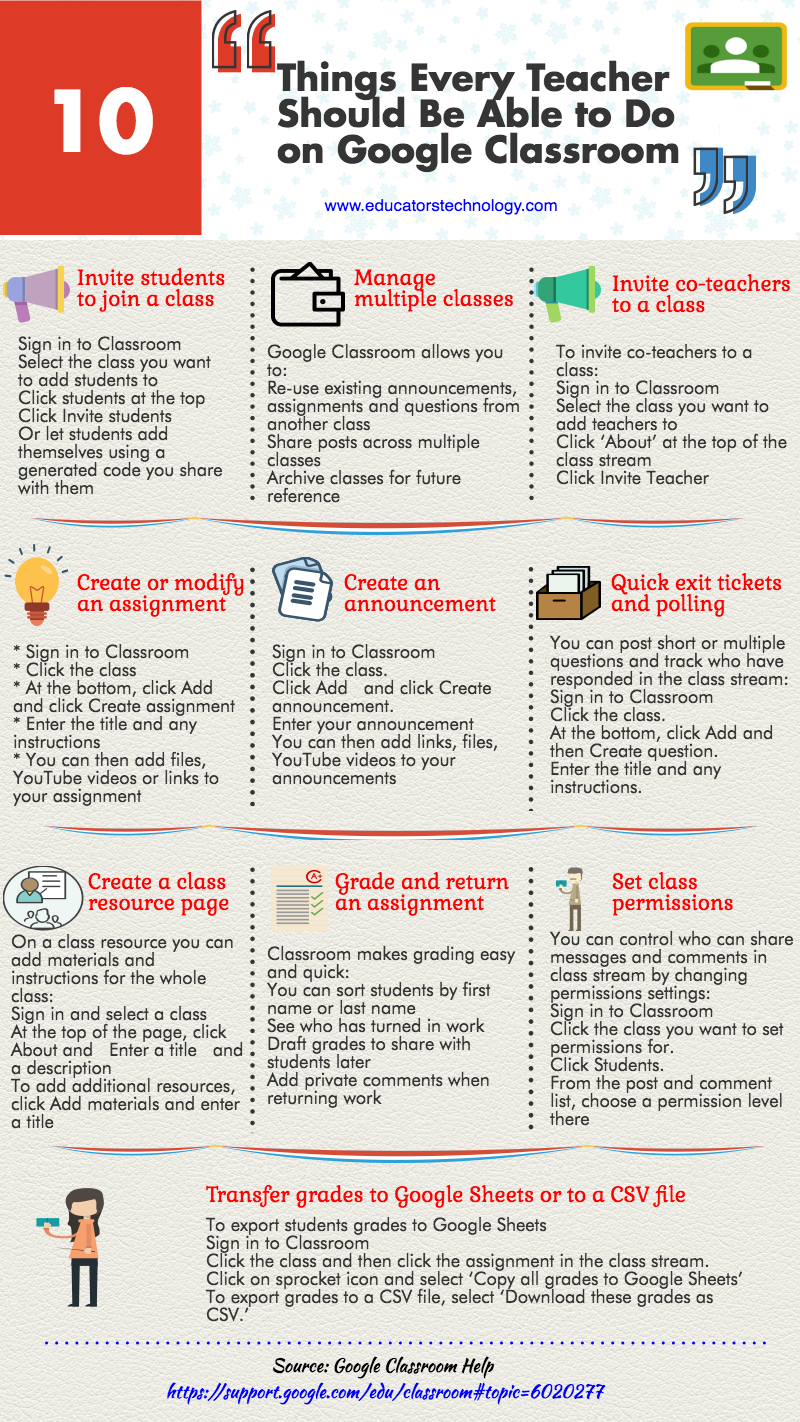
Here is a handy infographic we have been working on over the last few days.  The visual features 10 of what we believe are basic things every teacher should be able to do on Google Classroom. Instructions included are only for Classroom on the web, check out Google Classroom Help to learn more about how to use these features on mobile devices. We hope you like the infographic and share with your colleagues.  You can also republish it on your blog or website as long as you credit us as the source. Enjoy


Google Classroom tips

1- Invite students to join a class
  • Sign in to Classroom
  • Select the class you want to add students to
  • Click students at the top
  • Click Invite students
  • Or let students add themselves using a generated code you share with them
2- Manage multiple classes
  • Google Classroom allows you to:
  • Re-use existing announcements, assignments and questions from another class
  • Share posts across multiple classes
  • Archive classes for future reference
3- Invite co-teachers to a class
  • Sign in to Classroom
  • Select the class you want to add teachers to
  • Click ‘About’ at the top of the class stream
  • Click Invite Teacher
4- Create or modify an assignment
  • Sign in to Classroom
  • click the class
  • At the bottom, click Add  Add and click Create assignment
  • Enter the title and any instructions
  • You can then add files, YouTube videos or links to your assignment
  • You can also add due dates, create customized grade values, and track assignments
5- Create an announcement
  • Sign in to Classroom
  • Click the class.
  • Click Add Add and click Create announcement.
  • Enter your announcement
  • You can then add links, files, YouTube videos to your announcements
  • You can also save your announcement as a draft or schedule it for later
6- Quick exit tickets and polling
You can post short or multiple questions and track who have responded in the class stream:
  • Sign in to Classroom
  • Click the class.
  • At the bottom, click Add Add and then Create question.
  • Enter the title and any instructions.
  • You can then change due dates of your questions  and add materials e.g files, videos, docs
7- Create a class resource page
On a class resource you can add materials and instructions for the whole class:
  • Sign in to Classroom
  • Click the class you want to add the resource page to.
  • At the top of the page, click About.
  • Enter a title for the page and a description of the class.
  • Enter a location for your class in the Room field.
  • To add additional resources, click Add materials and enter a title
8- Grade and return an assignment
Classroom makes grading easy and quick:
  • You can sort students by first name or last name
  • See who has turned in work
  • Draft grades to share with students later
  • Add private comments when returning work
9- Set class permissions
You can control who can share messages and comments in class stream by changing permissions settings:
  • Sign in to Classroom
  • Click the class you want to set permissions for.
  • Click Students.
  • From the post and comment list, choose a permission level there
10- Transfer grades to Google Sheets or to a CSV file
To export students grades to Google Sheets
  • Sign in to Classroom
  • Click the class and then click the assignment in the class stream.
  • Click on sprocket icon and select ‘Copy all grades to Google Sheets’
  • To export grades to a CSV file, select ‘Download these grades as CSV.’

Sabtu, 11 Juni 2016

10 Basic Google Keep Tips Every Teacher Should Know about (Infographic)

June 11, 2016
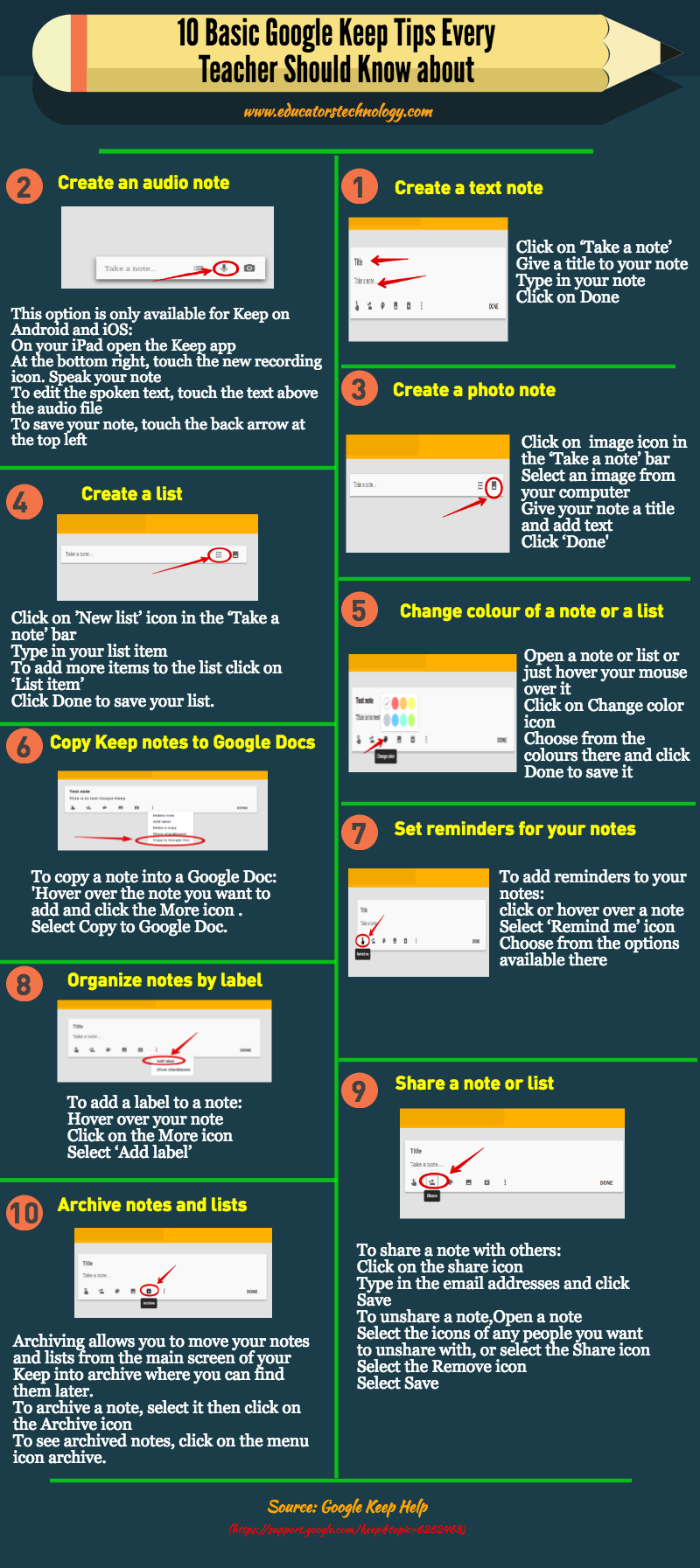
Google Keep is a powerful note taking application for teachers. It allows you to capture your thoughts in different format: audio, text and images. You can also use it to create to do-lists, add reminders to your notes, copy notes to your Google docs and many more. For those of you new to Google Keep, here is a handy visual that features 10 basic Google Keep tips you should know about. Check it out and share with your colleagues. Enjoy

Google Keep tips

1- Create a text note
  • Click on ‘Take a note’
  • Give a title to your note
  • Type in your note
  • Click on Done
2- Create a photo note
  • Click on image icon in the ‘Take a note’ bar
  • Select an image from your computer
  • Give your note a title and add text 
  • Click ‘Done' 
3- Create an audio note
  • This option is only available for Keep on Android and iOS
  • On your iPad open the Keep app
  • At the bottom right, touch the new recording icon 
  • Speak your note
  • To edit the spoken text, touch the text above the audio file
  • To save your note, touch the back arrow at the top left 
4- Create a list
  • Click on ’New list’ icon in the ‘Take a note’ bar
  • Type in your list item
  • To add more items to the list click on ‘List item’
  • Click Done to save your list.
5-  Change colour of a note or a list
  • Open a note or list or just hover your mouse over it
  • Click on Change color icon
  • Choose from the colours there and click Done to save it
6- Copy Keep notes to Google Docs
  • To copy a note into a Google Doc:
  • 'Hover over the note you want to add and click the More icon .
  • Select Copy to Google Doc.
7- Set reminders for your notes
  • To add reminders to your notes:
  • click or hover over a note 
  • Select ‘Remind me’ icon 
  • Choose from the options available there
8-  Organize notes by label
  • To add a label to a note:
  • Hover over your note
  • Click on the More icon
  • Select ‘Add label’
9- To share a note with others:
  • Click on the share icon 
  • Type in the email addresses and click Save
  • To unshare a note,Open a note
  • Select the icons of any people you want to unshare with, or select the Share icon
  • Select the Remove icon
  • Select Save
10- Archive notes and lists
  • Archiving allows you to move your notes and lists from the main screen of your Keep into archive where you can find them later. 
  • To archive a note, select it then click on the Archive icon
  • To see archived notes, click on the menu icon archive.

Jumat, 10 Juni 2016

A Good Infographic Featuring Some of The Best Classroom Management Apps and Tools

June 10, 2016
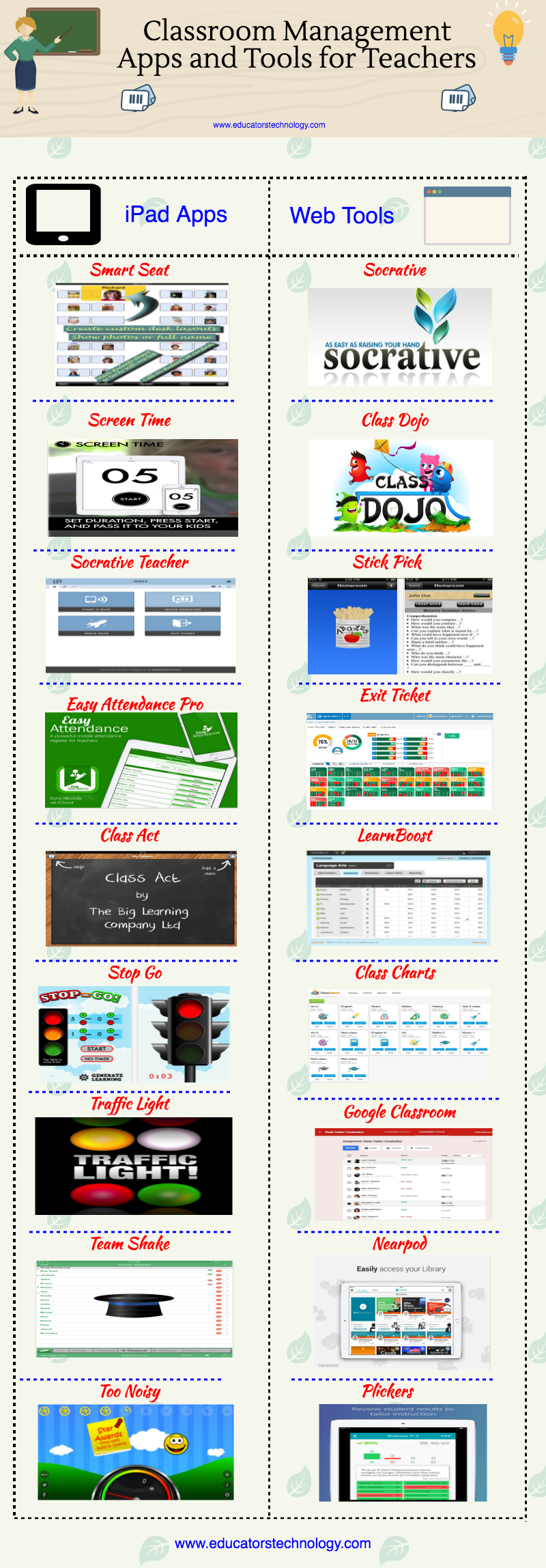
'Below is a collection of some very good  apps and tools to help teachers with  classroom management. Some of the tasks you can do with these apps include: conduct instant formative assessments in class, create seating charts, record class attendance, randomly pick students for classroom participation, create and share permission slips, visualize and assess students understanding, set timed tasks in class, improve students behaviour by providing real-time feedback, poll your students and many more.'

classroom management apps and tools

Kamis, 09 Juni 2016

An Interesting Infographic on The Differences between Summative and Formative Assessment

June 9, 2016
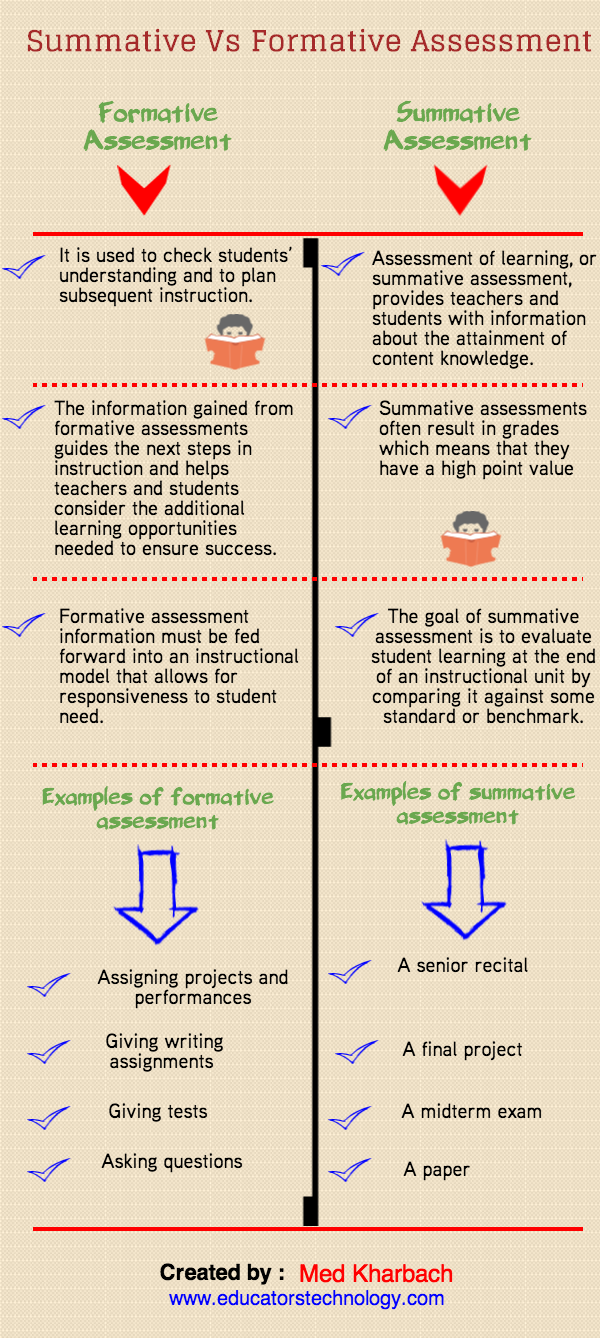
After the huge interaction we received following the posting of ’12 Great  Formative Assessment Tools for Teachers’ we decided to re-share with you this visual that we created almost two years ago. The visual sums up some of the key differences between summative and formative assessment. Insights included here are based on  Frey and Fisher's book " Literacy 2.0 : Reading and Writing in The 21st Century Classroom." The illustrative examples are taken from Eberly Center page. Frey and Fisher define formative assessment as assessment for learning and summative assessment as assessment of learning. Read on to learn more about the differences between each of these types of assessment.

summative vs formative assessment

Rabu, 08 Juni 2016

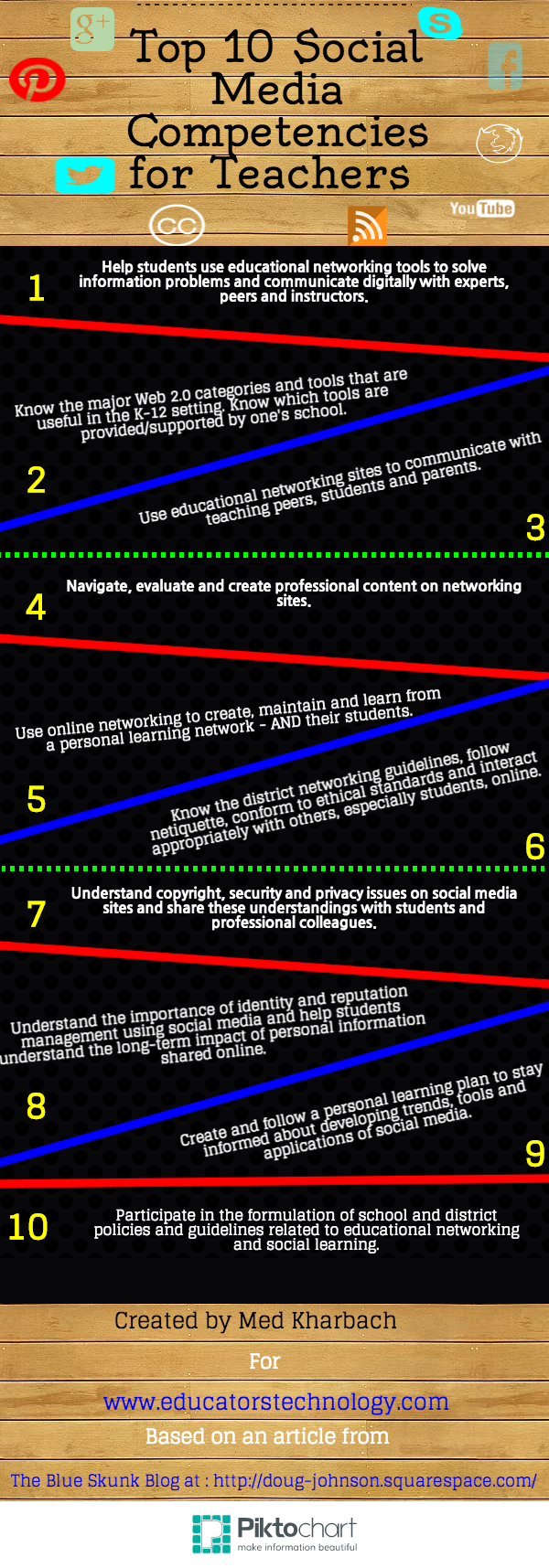
10 Key Social Media Skills for Teachers

June 8, 2016
Social media is becoming a key player in the educational sector. It is redefining the learning landscape in unprecedented ways. Old modes of learning that were once prevalent in the pre-digital era have now surfaced to the fore. Collective and group learning is now achieved through what James Paul Gee called Affinity Spaces or what Wenger et al. dubbed ‘Communities of Practice’. And with the increasing number of teachers and educators taking to social media websites, social networking becomes a central part in teachers professional development. With the upsurge of social media use among educators comes the importance of learning how to effectively use these tools  for educational ends. The infographic below we created a couple of years ago, features 10 of the key social media competencies for teachers. The graphic is entirely based on Doug Johnson’s popular article ‘Top Ten Social Media Competencies for Teachers ’. Check it out and share with your colleagues.


social media skills  Follow us on : Twitter, Facebook , Google plus, Pinterest .

Selasa, 07 Juni 2016

12 Great Formative Assessment Tools for Teachers

June 7, 2016
Formative assessment is assessment for learning which is different from summative assessment that is assessment of learning. This graphic we shared a couple of years ago sums up the main differences between these two types of assessments. The purpose of formative assessment is to gather teaching and learning feedback in order to inform your teaching methodology and help you decide on the upcoming instructional measures.  Some of the examples of formative assessment include: assigning projects and performances, giving writing assignments, and asking questions. In today’s post, we are sharing with you a set of interesting web tools you can use to formatively assess your students. Check them out below and share with us your feedback. Enjoy


1- Quizalize

'Quizalize is a very good classroom quiz tool. This tool allows teachers to create fun classroom exams or homework. Teachers can see the results live and easily spot students' strengths and weaknesses. The process to create a quiz is simple and easy. After you log in to your account (registration is required,Quizalize is free for individual teachers), go to ‘Your Quizzes’ tab and click on ‘Create a new quiz’. Follow the instructions and type in your data. Once you are done click on ‘Save’ to save your quiz. To assign the quiz to your students click on ‘Set Quiz’ button and enter the name of your class. A unique code will be generated for you to share with students. The students can then go to www.quizal.me and input the class code and their name to access the quiz.'
2- FlipQuiz


'FlipQuiz is a web tool that allows teachers to easily create gameshow-style boards for test reviews in the classroom. All the boards you create can be saved for later use. You can also share your boards up on-screen and have students work on them collaboratively...To set up your new quiz board, you will need to register. Once logged in, click on “ Create a new board”. Then use the editor provided there together with the different tools it offers to design your game boards. You can always edit your boards by clicking on the “edit your entire board button”. When you are done creating your quiz boards, you can then see the presentation version of your board by hitting “Launch presentation view”.'

3- Socrative
Socrative brings smart clickers, student response and ease of use to a whole new level. Engage the entire classroom with educational exercises and games while capturing student results in real-time. Interact with the data to further student understanding in the moment, and review the reports to prepare for future classes. Socrative will even aggregate and grade your pre-made activities! Saving you time, so you can engage more with your students on an individual level. Create a library of activities and share them with your colleagues and learning community.'

4- TodaysMeet

'TodaysMeet is a great web tool for creating backchannels with your students. It is very easy and simple to use. You can use it in your class to engage students in sideline discussions and chats around a given topic. The process to set up a backchannel via TodaysMeet is very easy: first, create a room and given it a name and a duration then share the URL of that room with your students and start the chat.'

5- Plickers

'Plickers is a wonderful web tool that allows teachers to collect real-tine feedback from students without them having or using any device. All they will use are cards with numbers and alphabets on them. As a teacher you use Plickers to gather data to use in your formative assessments. You can use polls, multiple questions, quick checks for understanding, true/false questions and many more.As you collect data from students, you can also view it together with them in the form of a group snapshot in a graph.'

6- Kahoot

'Kahoot is another great student response system that teachers can use to create and deliver quizzes and surveys to students. Kahoot provides a learning environment that is ideal for engaging students for it incorporates the precepts of both game-based learning and inquiry-based learning. Kahoot allows teachers to create quizzes and surreys that include a wide variety of multimedia elements such as videos, pictures and text. Each quiz you create can be accessed by students across different devices . Also teachers have the possibility to create time-controlled quizzes. You can set a specific period of time for the answer of each question. In this way students are rewarded not only for the correct answer but also for their timeliness.'

7- iClicker 


iClicker is a powerful student response system to use for engaging learners.’With REEF Polling, instructors can present with anything, utilize a floating toolbar, view a participant list, and send images of questions to student devices. Students respond to polling questions with any device, receive correct and incorrect answers, and can review session history as a study guide outside of class. REEF Polling is also a hybrid product, allowing students in the same classroom to use their smartphone, tablet, laptop or an i>clicker remote.’

8- Otus Teacher

‘Otus is the tool that allows educators to succeed in a data-driven culture by providing a single platform that displays standardized, formative, and summative assessment data, and makes that data actionable by all educators who use the learning and classroom management tools included within the system.’

9- GoSoapBox

‘GoSoapBox is a powerful, flexible, and intuitive student response system for educators to use in their classrooms. Leveraging web-enabled devices, teachers digitally engage students to conduct formative assessment and gain insight into student comprehension that was never before possible.’

10- AnswerGarden 


AnswerGarden is a new minimalistic feedback tool. Use it as a tool for online brainstorming or embed it on your website or blog as a poll or guestbook.


'Quizizz allows you to create interactive quiz games to use in your instruction for a number of educational purposes including formative assessment. Quiz games you create have up to 4 answer options including a correct answer. You can also add images to the background of your questions and customize the settings of your questions the way you want. When your quizzes are ready you can share them with your students using a generated 5 digit code.'


Formative is another excellent tool for doing formative assessment class. It allows you to easily create different types of assessments, classwork and homework. The way it works is simple: you create an assignment, assign it to students , receive live results and give your feedback. Formative works across different devices and is also optimized for BYOD, flipped and blended classroom.

Sabtu, 04 Juni 2016

12 Must Read Books for Librarians

June  3, 2016
In this week's Books for Teachers series, we are sharing with you this collection of some of the most popular books for librarians. These works cover some state of the art topics in library science including: insights on the rapidly changing environments of information retrieval services, library research techniques and management methods, library 2.0, developing scholarly writing projects in library science, the ins and outs of working with online database, learning about the best tactics in doing online research, learning the art of successful grant writing for libraries and many more.

librarian books

1- Collection Management Basics, 6th Edition,  by G. Edward Evans  (Author), Margaret Zarnosky Saponaro (Author)
‘Now thoroughly revised for today's 21st-century library environment, this title provides a complete update of the classic Developing Library and Information Center Collections―the standard text and authority on collection development for all types of libraries and library school students since 1979.’

2- Management Basics for Information Professionals, 3rd Editionby G. Edward Evans  (Author), Camila Alire (Author)
‘Reflecting the rapidly changing information services environment, the third edition of this bestselling title offers updates and a broader scope to make it an even more comprehensive introduction to library management. Addressing the basic skills good library managers must exercise throughout their careers, this edition includes a completely new chapter on management ethics. Evans and Alire also pay close attention to management in "new normal" straitened economic conditions and offer updates on technological topics like social media’.

3- Handbook of Academic Writing for Librarians , by Christopher V. Hollister (Author)
‘The Handbook of Academic Writing for Librarians is the most complete reference source available for librarians who need or desire to publish in the professional literature. The Handbook addresses issues and requirements of scholarly writing and publishing in a start-to-finish manner. Standard formats of scholarly writing are addressed: research papers, articles, and books. Sections and chapters include topics such as developing scholarly writing projects in library science, the improvement of academic writing, understanding and managing the peer review process including submission, revision, and how to handle rejection and acceptance, assessing appropriateness of publishing outlets, and copyright.’

4- Library Management 101: A Practical Guide, by Diane L. Velasquez (Author, Editor)
‘Knowing the principles of general management is both useful and necessary for LIS students, but it s no less important to learn management techniques specific to the world of libraries. Created to fill a surprising educational void, this edited volume focuses on best practices from library management experts teaching in LIS programs across the country. Among the many topics discussed are: Classic and modern theories of management, and how they apply to the library, human resource planning, marketing and public relations, negotiations, mediation, and financial management of the library, facilities management’.

5- Librarian's Guide to Online Searching: Cultivating Database Skills for Research and Instruction,  4th Edition, by Suzanne S. Bell  (Author)
‘This groundbreaking textbook and guide for library school students and librarians will help you―regardless of experience level or environment―learn the ins and outs of working with online databases, the best tactics for effective research online, and the methods for conveying these search skills to others.’

6- Foundations of Library and Information Science, Third Edition , by Richard Rubin  (Author)
‘Rubin explores the ever-growing impact of the World Wide Web, the impact of blogs, wikis, and social networks on services, electronic publication including e-books, digital libraries, digital preservation, mass digitization, and digital repositories, and Functional Requirements for Bibliographic Records (FRBR). His unique insights into these technologies and their impact on library services, policies, and legal standards are all part of why this book forms the essential foundation one needs to succeed as an information professional.’

7- Empowering Learners: Guidelines for School Library Media Programs, by AASL (Creator)
‘Guiding principles for school library media programs must focus on building a flexible learning environment with the goal of producing successful learners skilled in multiple literacies. Defining the future direction of school library media programs is the purpose of the newest set of guidelines from the American Association of School Librarians (AASL), entitled Empowering Learners: Guidelines for School Library Media Programs.’

8- Collection Development and Management for 21st Century Library Collections: An Introduction 1st Edition, by Vicki L. Gregory  (Author)
‘Practical and to the point, here's an authoritative guide to collection development and management that covers the entire gamut: Chapter 1: The Impact of New Technologies on Trends in Collection Development and Management; Chapter 2: Needs Assessment in Collection Development; Chapter 3: Collection Development Policies; Chapter 4: Selection Sources and Processes; Chapter 5: Acquisitions; Chapter 6: Budgeting and Fiscal Management; Chapter 7: Assessment and Evaluation of the Collection, including Deselection (Weeding); Chapter 8: Cooperative Collection Development and Resource Sharing; Chapter 9: Marketing the Collection and Outreach to the Community; Chapter 10: Legal Issues in Collection Development; Chapter 11: Diversity and ADA Issues; Chapter 12: Gifts and Exchanges; Chapter 13: Professional Ethics and Intellectual Freedom; Chapter 14: Preservation; Chapter 15: Future of Collection Development and Management.’

9- Basic Research Methods for Librarians, 5th Edition , by Lynn Silipigni Connaway  (Author), Ronald R. Powell (Author)
‘This thoroughly updated introduction covers the major issues involved in designing and conducting original research relevant to the fields of library and information science. Library and information science examples to explain research methodologies and techniques,explanations and examples of sampling procedures, a table for determining sample sizes and a random number table, notes at the end of each chapter, plus a list of more than 400 research-related references at the end of the book.’

10- Grants for Libraries: A How-To-Do-It Manual (How-to-Do-It Manuals for Librarians) , by Stephanie K. Gerding  (Author), Pamela H. Mackellar (Author)
‘Expert grant writers Gerding and MacKellar have created a "do-it-yourself" book and CD-ROM for fundraisers. They carefully outline the grant-writing process and provide a proven step-by-step strategy for getting your grant. More than 15 success stories from a variety of institutions and for various funding purposes are provided on the CD for you to model, adapt, or incorporate into your own winning proposals.’

11- Library: An Unquiet History 1st Edition, by Matthew Battles  (Author)
‘Through the ages, libraries have not only accumulated and preserved but also shaped, inspired, and obliterated knowledge. Now they are in crisis. Former rare books librarian and Harvard MetaLAB visionary Matthew Battles takes us from Boston to Baghdad, from classical scriptoria to medieval monasteries and on to the Information Age, to explore how libraries are built and how they are destroyed: from the scroll burnings in ancient China to the burning of libraries in Europe and Bosnia to the latest revolutionary upheavals of the digital age.’

12- Introduction to Modern Information Retrieval, 3rd Edition , by G. G. Chowdhurry (Author)
‘The recently revised third edition of this highly regarded text blends traditional theories, techniques and tools with coverage of cutting-edge advancements and sophisticated new technologies in information retrieval (IR). Unique in its scope, author G.G. Chowdhury s exhaustive guide spans the whole spectrum of this rapidly expanding field’.
Kamis, 02 Juni 2016

8 Important Chromebook Tips for Teachers and Students (Poster)

June 2, 2016
Here is a handy poster which you can print out and use with your students in class. The post features eight of what we think are important tips every teacher (and student) using Chromebook should be aware of.  This visual is actually based on a post we published a few months ago. All of the tips mentioned here are taken from Chromebook Help centre where you can access more details and tutorials on how to make the best of Chromebook in your teaching.

Chromebook tips

  1- Add apps and extensions to your Chromebook
  • Click on the Web Store icon in your Chromebook
  • In the left column, click on Apps or Extensions
  • Browse through the selections 
  • Click Install on the app you want to add
2- Uninstall apps and extensions
  • To remove apps right click on them 
  • Select Remove from Chrome
  • To remover extensions click on Chrome menu
  • Choose More tools and Extensions
  • Click the trash can icon next to the extension you want to delete
  • Or right click on extension icon in browser toolbar and select Remove from Chrome
3- Save files to your Google Drive
  • Login to your Chromebook
  • Click the status area where you account picture appears
  • Click Settings & Show advanced settings
  • In the Download section,  click the Change button
  • Select Google Drive
  • To save to an existing folder, double-click it.
  • To save to a new folder, click the New folder button.
4- Customize your Chromebook’s privacy settings
  • Click on Chrome menu icon in top right corner of your browser
  • Click Settings
  • Click Show advanced settings
  • Under Privacy, uncheck any privacy settings you no longer want. 
5- Share your Chromebook with others
  • Sign in to your Chromebook.
  • Click the status area, where your account picture appears.
  • Click Settings > Manage other users.
  • In the "Users" window that opens, check or uncheck the box for "Enable Guest browsing."
6- Save and view webpage bookmarks
  • On the right side of your address bar, click the star icon
  • You can also do one of the following:
  • Go to the Chrome menu  > Bookmarks > Bookmark this page.
  • Go to the web address bar at the top of the page and find the lock icon  or the page icon. Drag either one into the bookmarks bar.
  • Press Ctrl+D or ⌘+D.
7- Add people to your Chromebook
  • On the sign-in screen, click Add person.
  • Enter the Google Account email address and password, then click Next.
  • If you don't have a Google Account to add, you can create one by clicking More options > Create new account.
8- Control who can use your Chromebook
  • Sign in to your Chromebook as the owner
  • Click the status area, where your account picture appears
  • Select Settings and find the "People" section.
  • Click Manage other users and choose one of the options there